How to add a card to your collection
Tracking your collectibles is easy on CollectorWorth. You can add Cards and Funkos from the search page or directly from an item’s detail page. Collections are created automatically based on what you add—no setup needed.
Step 1: Navigate to the Search Page
To begin, click the Search link in the top navigation bar. This opens our powerful search tool where you can find cards and Funkos by name, set, game, or more.

Step 2: Find Your Item
Use the search bar to enter the name of your card or Funko Pop. You can also filter results on the left-hand side by game, set, series, rarity, or price range.
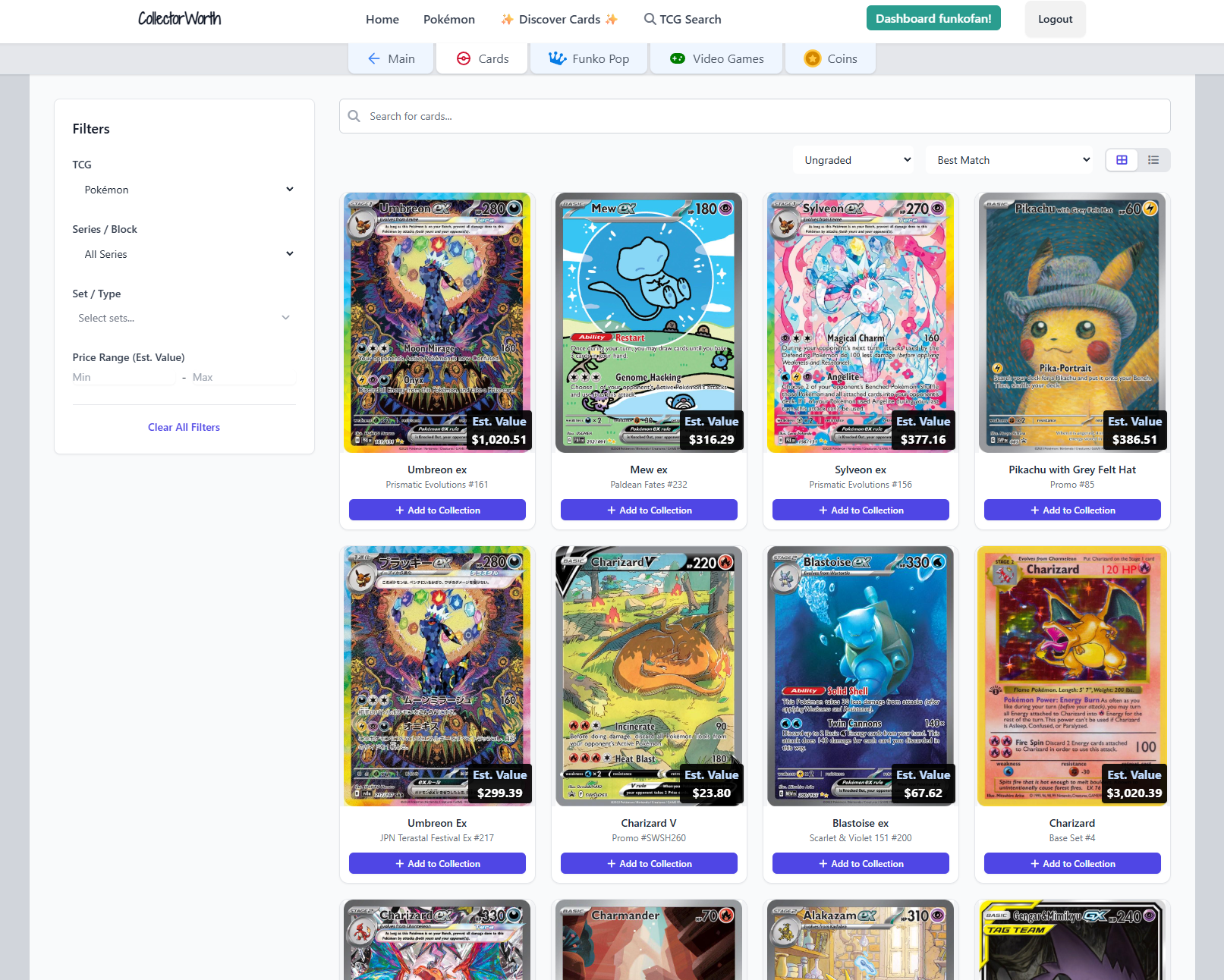
Step 3: Add to Collection
Once you find your item:
- Click the card to open the details page
- Click "Add to Collection" in the Collection Tracker
- Or use the “+” icon for a quick add
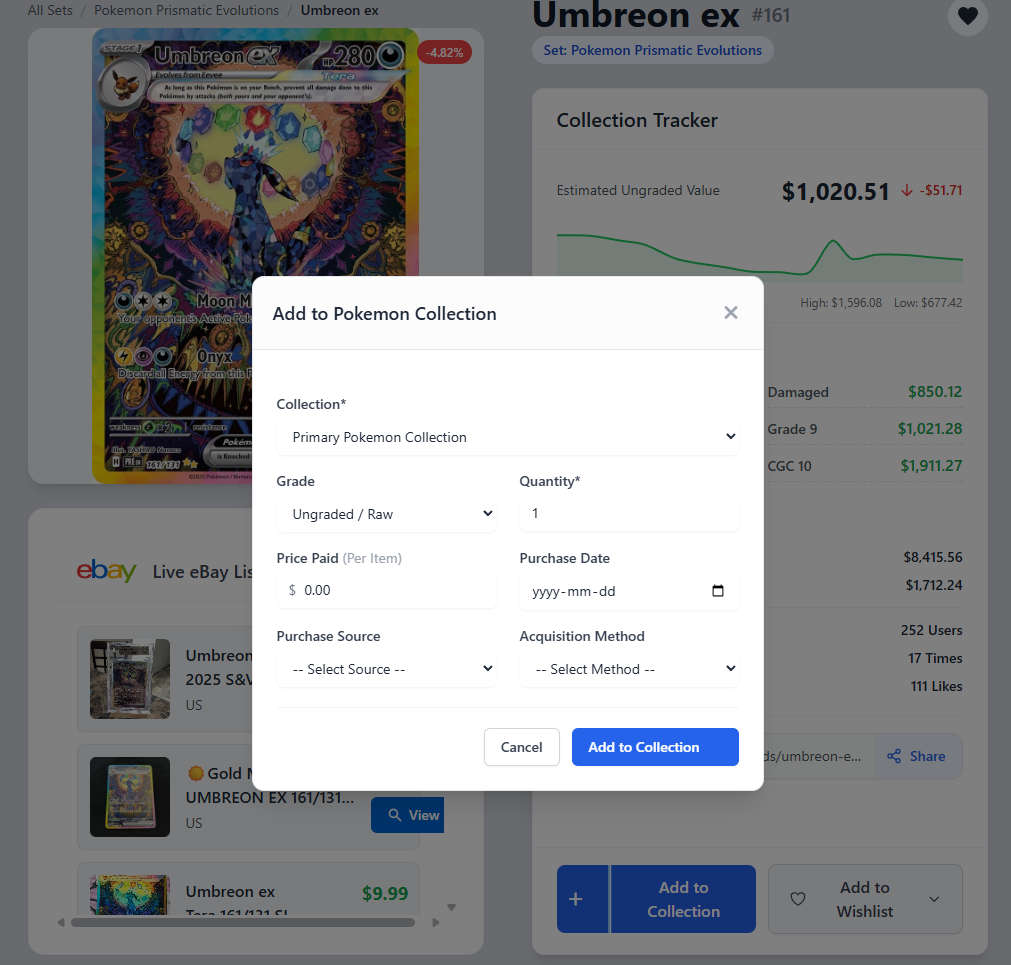
A modal will appear where you can enter the following:
- Condition or grade (e.g., Ungraded, PSA 10)
- Price you paid (cost basis)
- Acquisition method (bought, pulled, traded)
- Source (eBay, local store, etc.)
- Date you acquired it
- Quantity
Pro Tip: Adding your purchase price helps track your profit/loss over time!
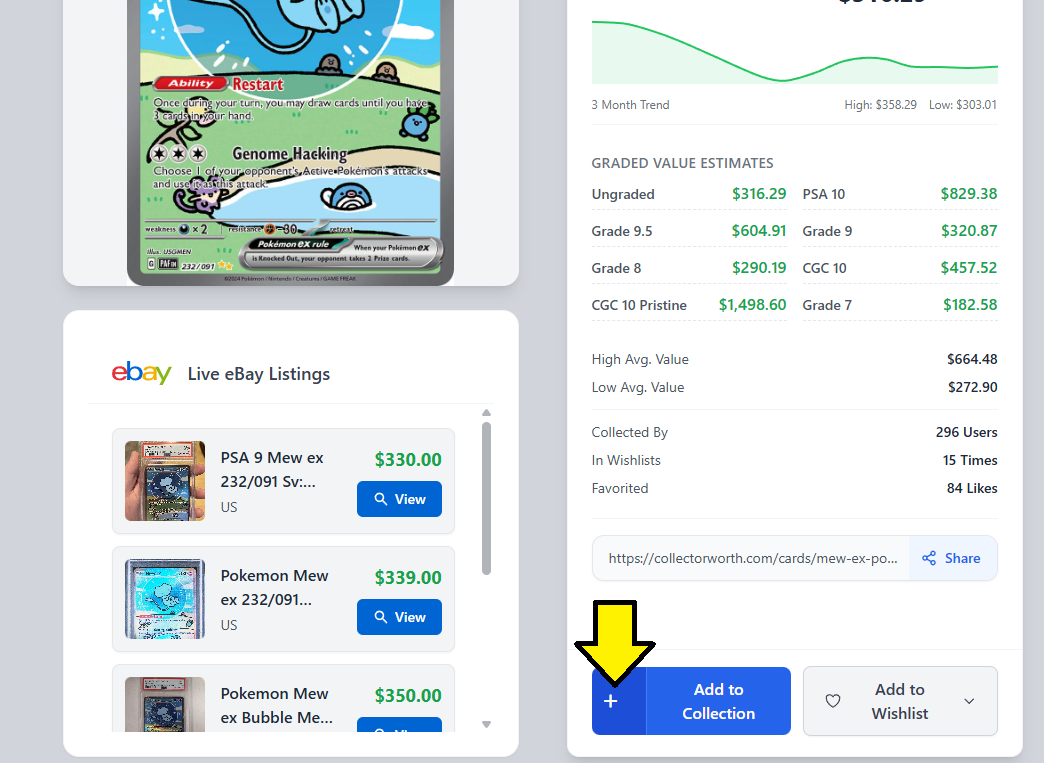
Quick Add Option
You can also click the small “+” icon for a quick add. This will instantly add one ungraded copy of the item to your primary collection—no modal required.
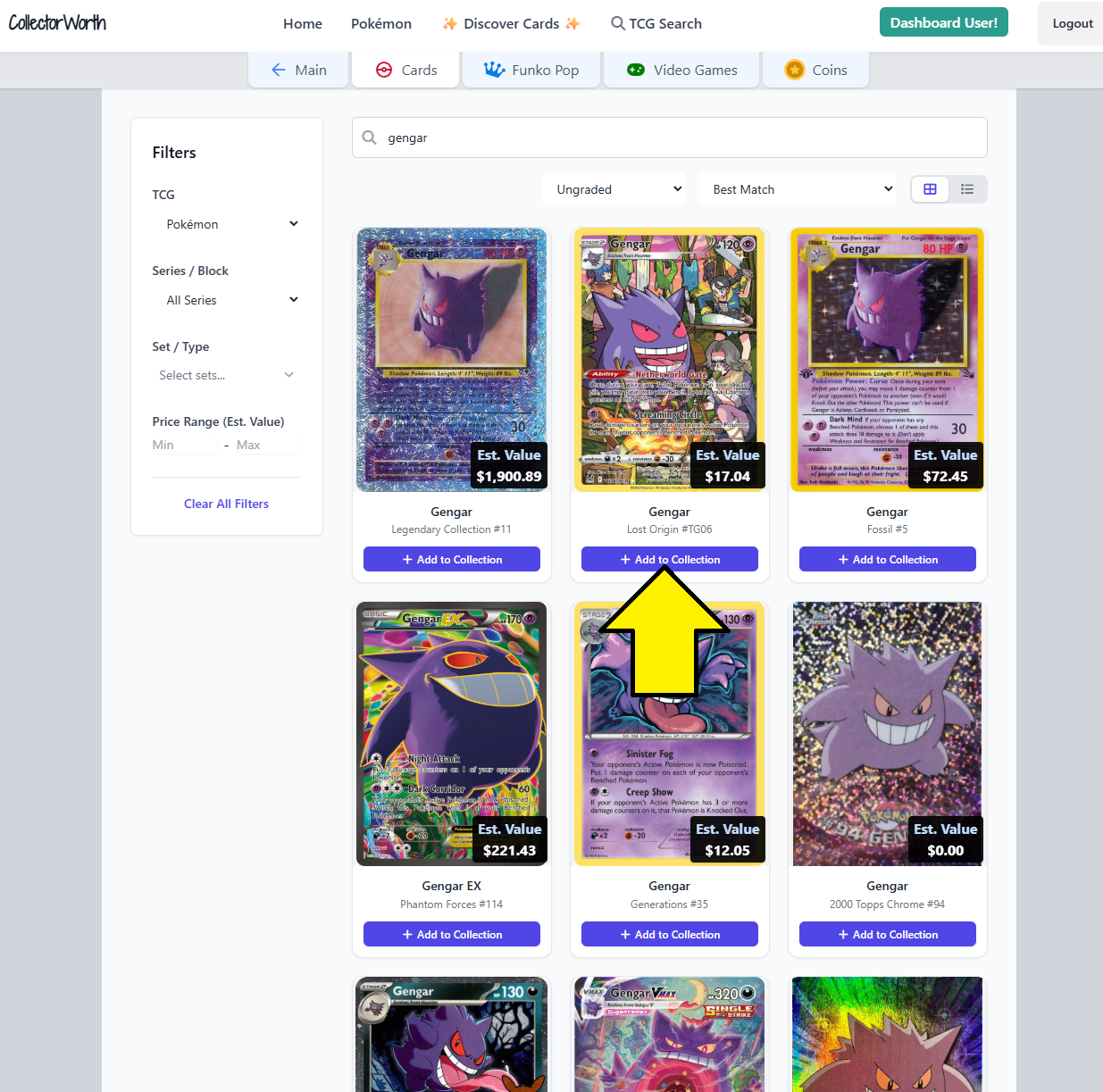
Step 4: Add from the Search Page
Alternatively, click on a collectible to visit its detail page. From there, you can:
- Click "Add to Collection" in grid view
- Or click "Add" in list view
Automatic Collection Creation
If you don’t have any collections yet, don’t worry! When you add an item, we’ll automatically create a collection for it:
| Item Type | Collection Created |
|---|---|
| Pokémon card | Pokémon Collection |
| Yu-Gi-Oh! | Yu-Gi-Oh! Collection |
| MTG | Magic Collection |
| Lorcana | Lorcana Collection |
| One Piece | One Piece Collection |
| Funko Pop | Funko Collection |
Track Your Value Automatically
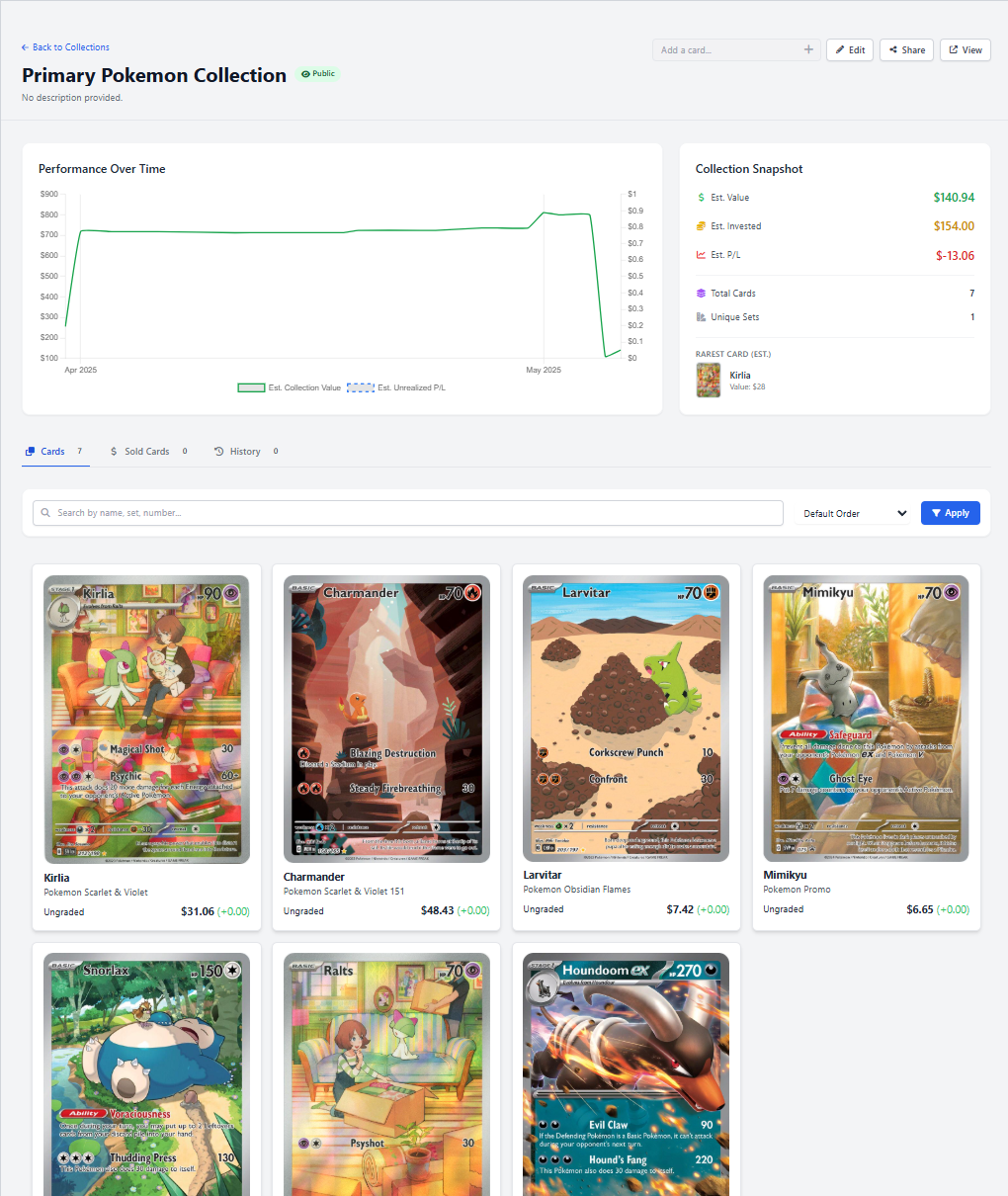
Once an item is added, its market value will be tracked automatically. You’ll see:
- Live price updates
- Total collection value
- Profit/loss based on your cost basis
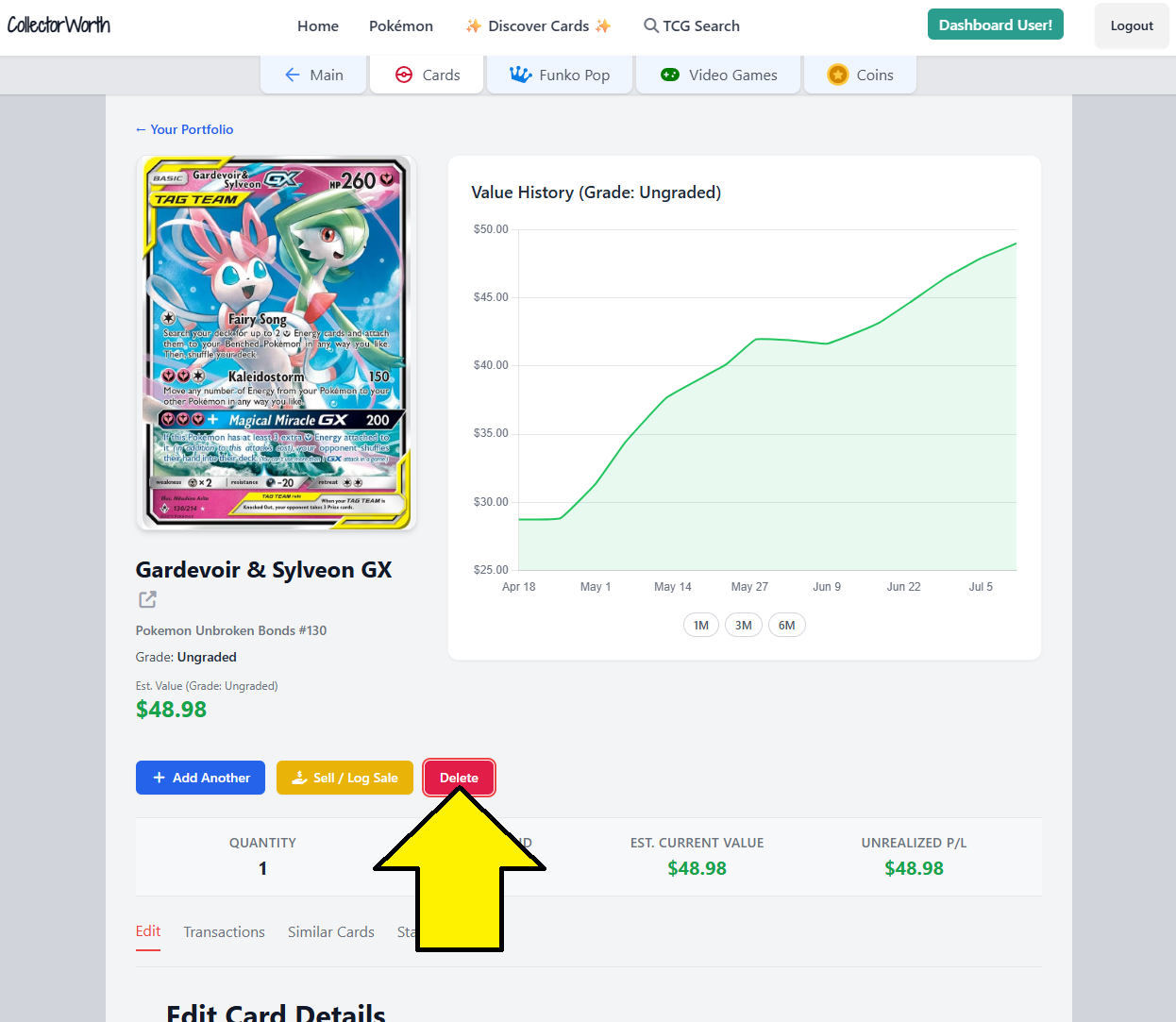
How to Delete an Item
If you need to remove an item from your collection:
- Go to your Dashboard
- Click on Collections
- Select the collection containing the item
- Click on the specific card or Funko
- Click the Delete button
- Confirm by clicking the delete button again
Still have questions? Visit the Help Center homepage or Contact Support.