Using the advanced search filters
Using the Search Bar
The main search bar uses autocomplete to help you find items faster. As you type, suggestions will appear. You can click a suggestion or press Enter to perform the search.
Understanding the Filters
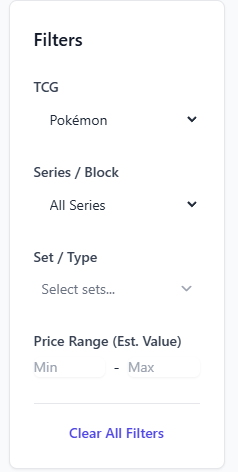
The filters on the left side of the search page are the most powerful way to find the exact item you're looking for. Here's a breakdown of each filter:
- Game: Select the type of collectible you are searching for, such as Pokémon, Yu-Gi-Oh!, or Funko Pops. Changing this will update all other available filters.
- Series / Block: This allows you to filter by a major era or grouping of sets (e.g., "Sword & Shield" series for Pokémon, or a "Block" for Magic: The Gathering).
- Set / Type: This is the most specific filter. It lets you choose the exact set or product line the item belongs to (e.g., "Evolving Skies", "151", or a Funko Pop "Type" like "Animation").
- Price Range: Filter results based on their current market value. You can set a minimum, a maximum, or both. The value it filters on corresponds to the grade you have selected in the "Price View" dropdown.
Sorting and Viewing Results
Above the search results, you have two important dropdowns:
- Price View: This changes the price displayed on every card. You can view the estimated ungraded value or the value for a specific grade (e.g., PSA 10, CGC 9). This also affects the "Price Range" filter.
- Sort: Change the order of the results. You can sort by popularity, price (high to low or low to high), alphabetical order, or card number.
Pro Tip: To find the most valuable card in a specific set, select that set in the filters and then sort by "Value: High to Low".